
See the actual conversion, not an AI redraw
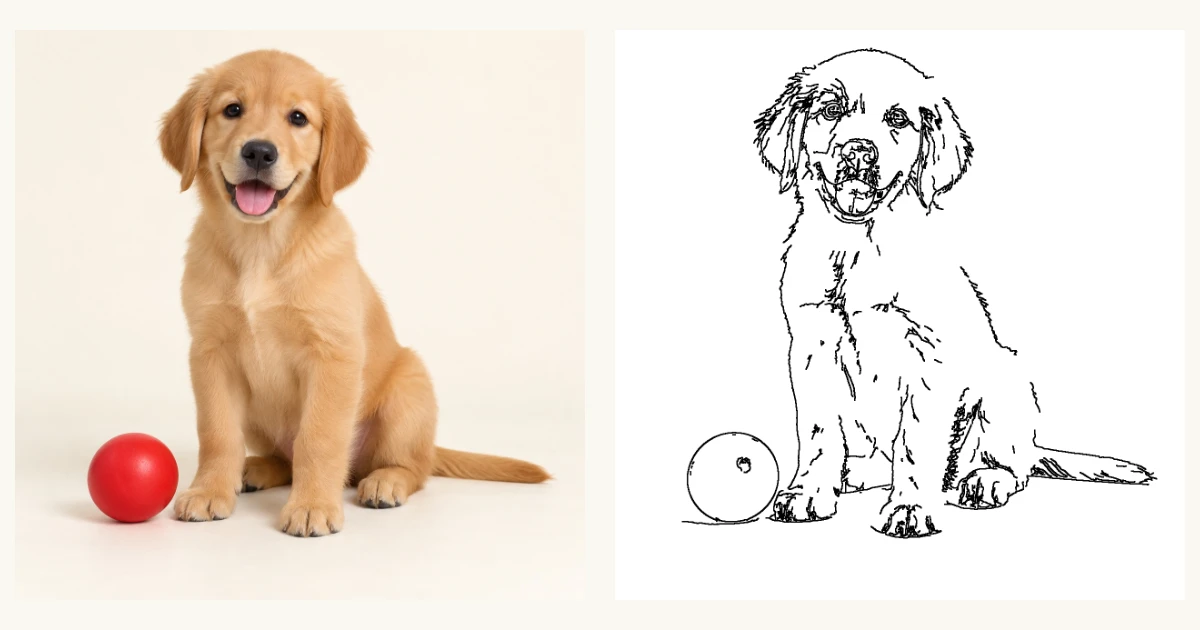
This sample starts with a synthetic puppy photo against a simple backdrop. The second image is the actual output of this converter at Detail 55 and Medium thickness. Compare the ears, paws and ball: the tool traces contrast in the picture rather than inventing a new drawing. Some fur and shadows remain. Try the same sample above to explore the trade-off between fewer marks and more recognizable detail.
How to turn a photo into a coloring page
- Choose a picture with one clear subject. A pet, toy, flower or person against a plain background is a useful starting point. Select a JPG, PNG or WebP from your device. There is no upload step: the browser reads the file locally and resizes large pictures before extracting outlines. Keep your original file if you need the full-resolution photograph later.
- Start at the default settings and look at the result beside the original. Lower Detail if fabric, fur or scenery creates too many marks. Increase it if an important feature disappears. Then choose a line thickness that suits the size you will print. A wider stroke does not remove clutter; simplify the outlines first, then make them heavier if necessary.
- Download the PNG when the preview looks useful, or choose A4 or Letter and open the print dialog. Check the preview before printing. If your browser offers a PDF destination, select it to save a printable document. Clear the photo when you finish, especially on a shared computer, and choose another picture to make a new page.
Choose a photo that leaves room to color
The best input is not always the most beautiful photograph. For coloring, a clear silhouette and open areas matter more than cinematic lighting. A sharp subject on a contrasting, uncluttered background gives the converter useful boundaries. Backlighting, deep shadows and patterned clothing can create edges that look like extra objects. Crop away distracting scenery in your usual photo editor before selecting the file here. This tool does not identify the subject or automatically remove its background.
A practical guide to settings and difficult photos
Use the preview to make one change at a time. These are starting points, not promises of an identical result for every picture. Image contrast and the amount of texture affect which outlines survive. If a photo needs extensive cleanup, choosing a simpler input is often more effective than pushing either control to its limit.
| What you see | What to try | What it cannot fix |
|---|---|---|
| Too many marks in grass, hair or fur | Lower Detail; crop the background before importing. | There is no semantic background removal or automatic fur simplification. |
| Eyes or pale features are missing | Raise Detail slightly and keep the stroke thin. | A blurred or nearly invisible boundary cannot be reliably recovered. |
| Tiny spaces fill with black | Reduce line thickness or print the subject larger. | Thicker strokes do not create new open coloring regions. |
| Broken outlines or a noisy silhouette | Use a sharper photo with more even light and stronger subject contrast. | The converter does not guarantee closed shapes or redraw missing edges. |
Print on A4 or Letter, or save a PDF
The PNG contains the black-and-white image, without the surrounding page interface. A4 and Letter affect print layout rather than changing the downloaded PNG dimensions. The print view uses portrait paper, a 10 mm margin and a fitted image that preserves its proportions. Match the paper setting in your printer dialog, and disable browser headers and footers if they appear. Printer drivers can override these settings, so the final preview is the best check for clipping or unexpected blank pages.
Processing is capped at 1,600 pixels on the longest side to keep memory and computation bounded. Smaller inputs are not enlarged during conversion. This is not a promise of 300 DPI at full-page size: enlarging a small image spreads the same pixels over more paper. If lines look rough, print at a smaller physical size. Save as PDF depends on the print destinations offered by your browser or operating system; if it is unavailable, download the PNG and print from another application.
A local photo converter versus AI redrawing
This is an image-processing tool, not an AI coloring page generator. It smooths the image, finds contrast boundaries and turns connected edges into black strokes on white. The picture keeps its spatial layout, but some facial features, soft colors or low-contrast details may disappear. That is different from asking a generative model to reinterpret a photo as a drawing, which may simplify shapes more extensively or change what they look like.
Use this local approach when you want to try a photo to coloring page conversion without sending the file to a conversion service. If you need a new composition, a cartoon character, automatic background replacement or consistently large closed spaces for very young children, this tool is not designed for that job. Inspect the result before sharing it. Free processing is useful only if the resulting page suits the activity you have in mind.
What happens to your photo?
The converter reads your selected file into browser memory and runs the outline calculation in a worker on your device. It does not send that image to an upload endpoint, an AI provider or our image storage. Clearing the photo removes it from the active workbench; reloading does not restore it. Downloads remain wherever you save them. The rest of this website may still make ordinary network requests for pages, fonts or analytics, so local photo processing does not mean the entire website is offline or tracking-free.
Questions before you start
Is this photo-to-coloring-page tool really free?
Yes. The converter has no payment step, account requirement, credit balance or watermarked download. Processing runs on your device. The file-size, pixel-count and output-resolution limits protect browser performance rather than creating a paid upgrade. You can clear the workbench and process another photo when you are finished.
Can I make coloring pages from family or pet photos?
You can try either. Select a sharp picture where the subject stands out from the background. Faces and detailed fur are more demanding than simple objects, and an outline can lose the details that make a person recognizable. Check the result before printing, and use photos you have permission to process and share.
Why does my coloring page still look messy?
The tool detects contrast, not meaning. It can trace a patterned wall just as readily as a face. Lower Detail to suppress weaker marks, use thinner lines to keep small spaces separate, or crop the source outside this tool. If those changes do not help, choose a picture with a plainer background rather than expecting a clean AI-style redraw.
Does a black-and-white photo do the same thing?
No. A grayscale photo retains shading and filled areas, which can leave little space for coloring. This converter aims for a white background with black outlines instead. The result can still contain small dark regions where several edges overlap, so compare the preview at a useful size before downloading.
Can I use a phone photo or HEIC file?
Phone photos work when saved as JPG, PNG or WebP within the stated limits. HEIC is not accepted by this tool; export or convert it to JPEG on your device first. If the browser struggles with a large camera photo, make a smaller copy. The original file on your device is not overwritten.
Ready to turn a photo into a coloring page? Start with a simple picture, check the outlines, and print only when the result leaves enough room for your pencils or crayons.
Method and browser reference
The conversion method and limits described here match this tool’s implementation. For the browser capability behind PNG export, see the MDN reference for HTMLCanvasElement.toBlob(). Questions or a reproducible problem? Contact us with a description; you do not need to send a private photo.
MDN: HTMLCanvasElement.toBlob()